
An Overview that is yours
The home screen is a stack of cards from your money, shared groups and teams. Choose the cards you want and drag them into your order. A card appears only when its section is switched on.
Your own money, money you share with others, and the books of a team, in one app that also works without internet. Each picture below is an illustration with sample numbers, drawn for this page. It is not a real person's data.
VioLedger is an Android app and a web app, in closed testing. An iPhone and iPad app is coming soon. Plans, limits and buying a plan start with the public release.
New to the app? How it works goes through My Money, Shared, Teams and Settings step by step, with samples you can try.
Your personal accounts, spending and income. Only you can see them.
The home screen is a stack of cards from your money, shared groups and teams. Choose the cards you want and drag them into your order. A card appears only when its section is switched on.
Going on a trip, building a house, planning a one-day outing? Switch on Purpose mode in the home side menu, pick the tags for it, and every new entry you add gets those tags until you switch it off. Entries you add to Shared that also go into My Money carry the tags on your My Money copy. The same menu holds quick adds, the cards of your home screen, your plan and sync status.
See how your total balance moves month by month. Every point comes from the entries behind it.
Open any account to see its statement. Each line shows the balance after that entry, so you can check it against your bank.
Income, spending and transfers in one list. Each row can carry tags, show that it is linked to a shared expense, or show that it was reversed. A correction keeps the history.
Cash, bank, wallets and credit cards all have a place. Credit cards include credit limits, statement and payment dates, and reminders with a custom number of days before the due date. Pay one expense from multiple accounts, move money between accounts, or link it to a Shared entry. Receipt attachments belong to the planned Max tier.
Choose once, daily, weekly, monthly or annually with a date and time. Many schedules stay easy to scan: each one is a single row that opens to its details, and cancelled ones are gone from the list. A waiting occurrence has Confirm and Skip, and one switch, Post automatically, chooses whether entries post by themselves or wait for you. Set how many upcoming days and preview rows to show; overdue unposted items stay visible until resolved.
Paid partly by cash and partly by bank? Split the payment across your accounts while keeping one expense to describe and report on.
Add a label such as Vento, Home build or Munnar trip across categories. Combine account, category, label and date filters to see what that purpose really cost.
Set a limit, watch it fill up, and look back at where the money went.
Each budget shows what you spent, what is left and how many days remain, plus about how much you can spend a day. When you go over, the card changes colour and says so in words, and you can still save the entry.
Compare what came in with what went out, month by month, and spot the months that ran hot.
A category chart for any period. Ready-made categories can be renamed, and Pro and Max add your own.
Reports grow with the plan. Free has the overview, a monthly summary and a category chart. Plus adds trends, net worth, budget against actual and account statements. Pro and Max add tag reports, custom date ranges and CSV, Excel or PDF export. CSV, Excel and PDF exports are available on Pro and Max. Viewing existing records remains available after a downgrade.
Pro and Max include CSV, Excel and PDF exports across My Money, Shared and Teams. Shared person CSV files can also be re-imported. Choose a person, review the entries and confirm before anything is added.
Import a two-person CSV, identify your name and match the other person to an existing person or create one. The closing balance is checked, payment rows stay payments and the balance-summary row is never added as an expense.
Splitwise CSV does not contain complete payer allocations. The preview explains how these are reconstructed while preserving expense totals and balances.
A Shared person CSV preserves exact payer amounts, splits, payments, loans, notes, recorded times and exchange rates. Its versioned Details column keeps those values together. Keep the original export unedited when re-importing.
Original entries and repeated imports are skipped, not overwritten. Similar entries need your confirmation. Group CSV re-import is not included yet.
The group administrator can bring in the history of a Splitwise group (Pro and Max). The file is read on your phone and never stored. Match each person in the file to a member of the group, or add them as a name-only person: nobody is invited. Each expense needs one payer, payments go from one person to one person, and every person's closing balance in the file must equal the entries, or nothing is imported.
Importing the same file again adds nothing, entries that look like ones already there ask you first, nobody is sent a notice for old history, and the whole import can be undone.
Open More → Data & sync → Data migration. Preview first, then import the entries together. The CSV itself is read on the phone; only entries and small import-tracking records are saved.
No historical activity messages or automatic invitations are sent. My Money stays unchanged. Undo is available for imports whose entries have not since been changed or linked.
These files use fictional Alex and Sam entries: a shared expense with two payers, a loan, a payment and a foreign-currency expense. They were generated by VioLedger's export code. They contain no customer data.
A readable, versioned Shared person export for migration and re-import. The extra Details column preserves exact entry data; do not remove it.
Download sample CSVA real .xlsx workbook for sorting and checking your records in a spreadsheet. Export filters include the period and entry type, with account and category filters where available.
Download sample ExcelA printable statement for reading and sharing. Excel and PDF files are not import formats; use the original VioLedger CSV to re-import a Shared person's entries.
Download sample PDFShared history migration and all three export formats require Pro or Max when plan limits are enabled. General My Money CSV import remains a separate Plus-and-above feature. Testing access may differ while billing is not live.
Use equal splits, exact amounts, percentages, shares or adjustments. One person or multiple people can pay. Record an expense, a loan or a settlement using the same familiar entry flow.
See personal and group balances together or open their breakdown. Green means money to get; orange means money to give. Search history and filter outstanding balances.
Debt simplification rearranges who pays whom while preserving each member's net balance. Invite people by link and manage group members from the group.
When you add a person, a group member or a Team member, type the first letters of a name. The people you already know come first, then others who use VioLedger. Their email address and phone number stay private: only a full email or phone number you already have finds a person that way.
Save your own UPI ID once in More → Account and security. The person who owes you then gets it filled in on Pay with a UPI app, opens their UPI app with the amount ready, and records the payment afterwards. Only people you share a book with can be given your UPI ID. VioLedger never sees the payment or its result.
With one person, both of you can edit, delete or reverse any entry. In a group, the administrator chooses in the group's settings: Only the people in the entry (the default), meaning whoever paid or has a share in it plus the person who made it and the administrator, or Any member of the group. Everyone in the entry is told when it is added, edited or deleted. Teams keep their own roles.
Removing a member asks you by name first, and is refused while they still owe or are owed money. Their history stays. If you add the same email later, the same person is switched back on, with no duplicate and no lost history.
Keep payment reminders in their own Shared tab. Use WhatsApp or email, with a message you review before sending.
Use a person's saved phone number or email, pick a contact, or enter a different destination. Choose a default message language or write your own.
Set the timing and look ahead to upcoming reminders. Filter due and overdue items, pause a reminder or snooze it when plans change.
Check the person, outstanding amount and message before opening WhatsApp or email. Scheduling a reminder does not silently send a message for you.
Invite a person by email or phone, or share a group or Team invitation. The link you send is the VioLedger page on Google Play, with the invitation carried along. They install the app and sign in, and the invitation is waiting. There is no code or link to type. You can also share the VioLedger website instead.
Review the invitation before accepting. Adding a phone number is different from verifying that it is yours. Signing in with Google does not automatically give VioLedger a verified mobile number. Phone inputs have a searchable country-code selector, initially based on your app country.
Invitations that match your verified email or phone appear in Invitations for me, where you review and accept them. Nothing is joined until you confirm that it is you.
Separate books for a committee, club, shop or project. Everyone can see what they are allowed to see; only the right people can change it.
People with permission add an expense, income or transfer, and an approver accepts it before it reaches the books. Waiting entries are not in any balance. Roles such as treasurer, president or secretary decide who can add, approve, see reports or manage members, and you can make your own roles. The person who created the team can always manage roles.
Collect member contributions, record receipts and handle reimbursement claims from start to finish. Keep assets and their maintenance, and open statements and graphs for any period. Use permissions and approval requests for changes; the creator has administrator controls. Switch between teams or view them together. Invite members by link and hand over treasurer duties with identity verification. Close the books through a date to protect a finished period.
A team uses the plan of the person who created it. Members who only join never use up their own allowance.
Keep pending actions together with a count. See approved and rejected requests separately, including the rejection note, and follow member payments through review and acceptance.
The current treasurer starts a verified handover and the new treasurer accepts it. Pending requests can be revoked by the sender, and repeated taps do not create duplicate handovers. The creator keeps administrator controls, including role management and deletion with history warnings.
Set one-time or recurring collections, choose who pays and allow different member amounts. Record cash, bank or UPI details, and keep contributions, receipts, reimbursements and assets in the team's books.
Step by step: how Teams work, with roles, approvals and who sees balances.
Assets and liabilities, account types such as bank, cash and credit card, and one level of account subgroups. Reuse your setup across My Money, Shared and Teams.
Start with built-in income and expense categories, including recharge and internet, AI and streaming subscriptions, cloud services, rent income and cashback. Edit the hierarchy, change a parent, archive what you do not use and add your own categories on Pro or Max.
Choose where accounts, categories, transaction tags and funds are available. Manage Team types, currency formats and section preferences from the organised More menu.
VioLedger will have four plans: Free, Plus, Pro and Max. A page in More called My plan and usage shows where you stand. Plans launch with the public release; nothing can be bought yet. See Pricing for the numbers.
Every limit is a bar with the date it resets. You get a notice at 80 percent and when you reach the limit. Limits only stop you creating new things; nothing you already have is deleted or hidden.
Some things never depend on a plan.
This is VioLedger's own Themes screen, so you can try every look before you choose. VioLedger follows your phone: light by day, dark by night. Pick a look for light and one for dark, add a background and a list layout, and watch the preview change. The VioLedger look and Soft cards are free; the tones need Plus; the other palettes, Terminal, backgrounds and the Hero and Compact layouts need Pro or Max.
VioLedger follows your phone: light by day, dark by night.
Applies to Shared, My Money, Teams and Overview. Soft cards is free; the other two layouts are for Pro and Max.
Included in every plan.
Illustration with sample numbers. A locked look can be previewed here; to use it in the app you need the plan shown on it.
Open app.violedger.com on a computer or a phone and sign in with the same account. Your books, Shared groups and Teams are all there. This section shows real screens with sample data.
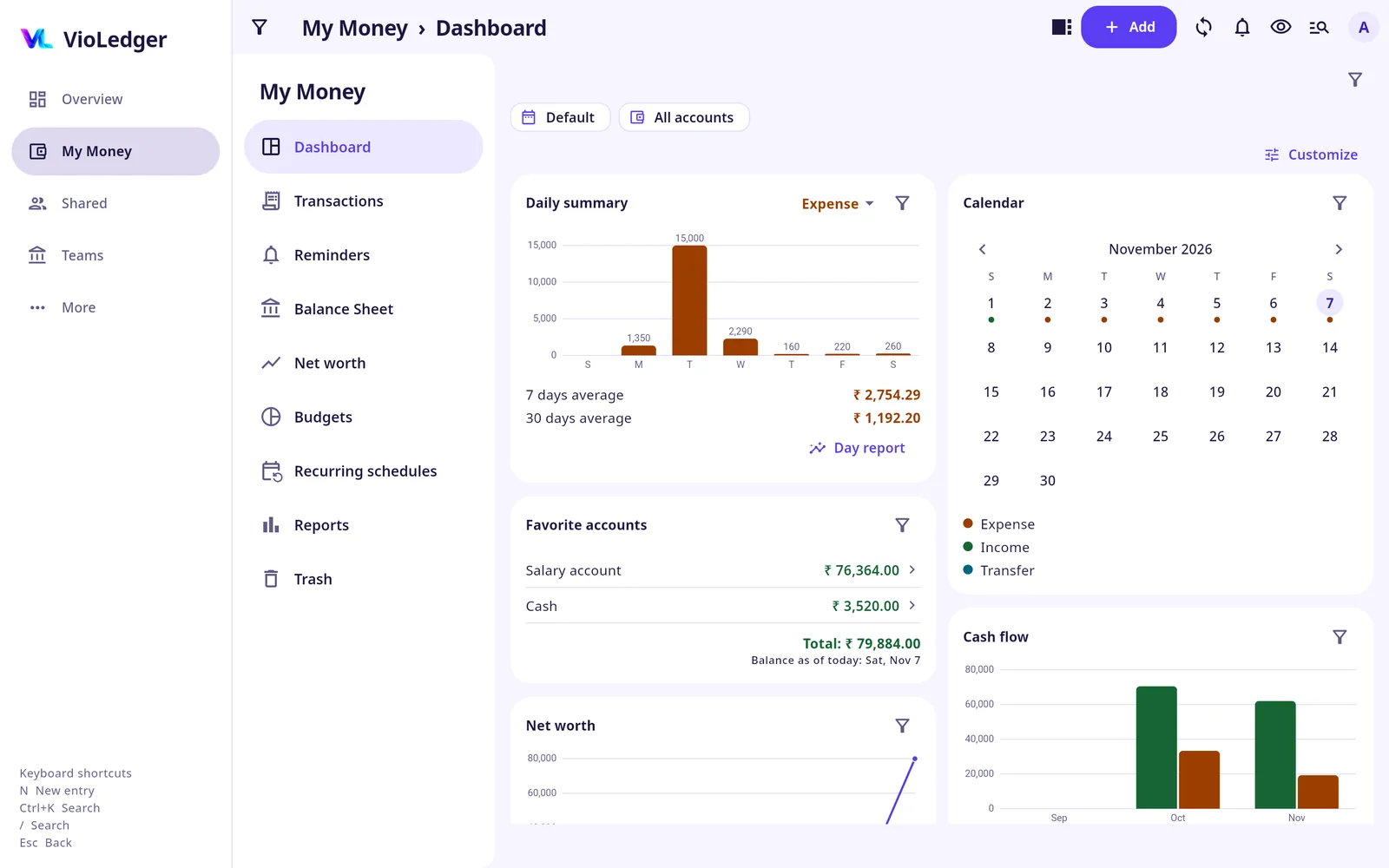
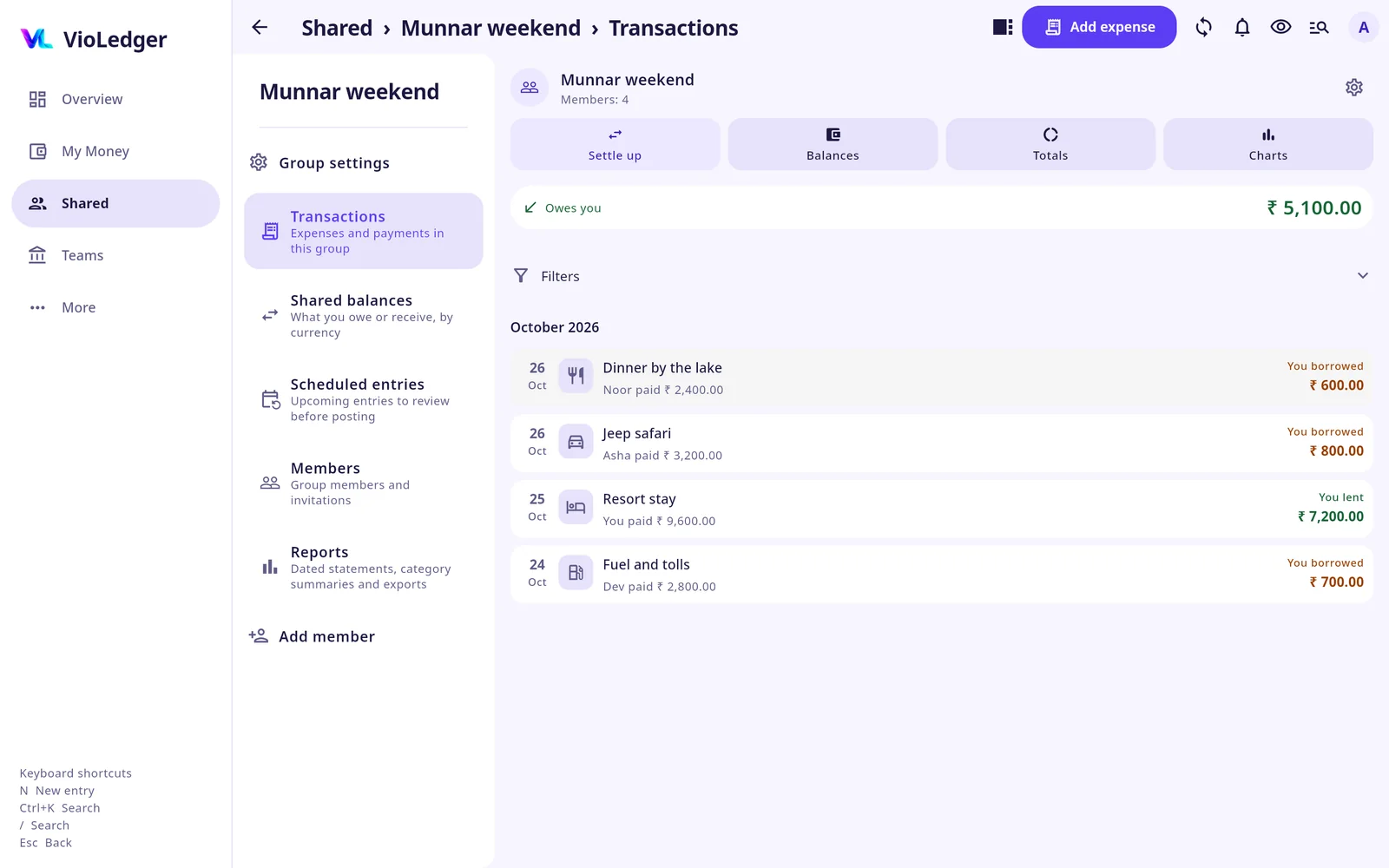
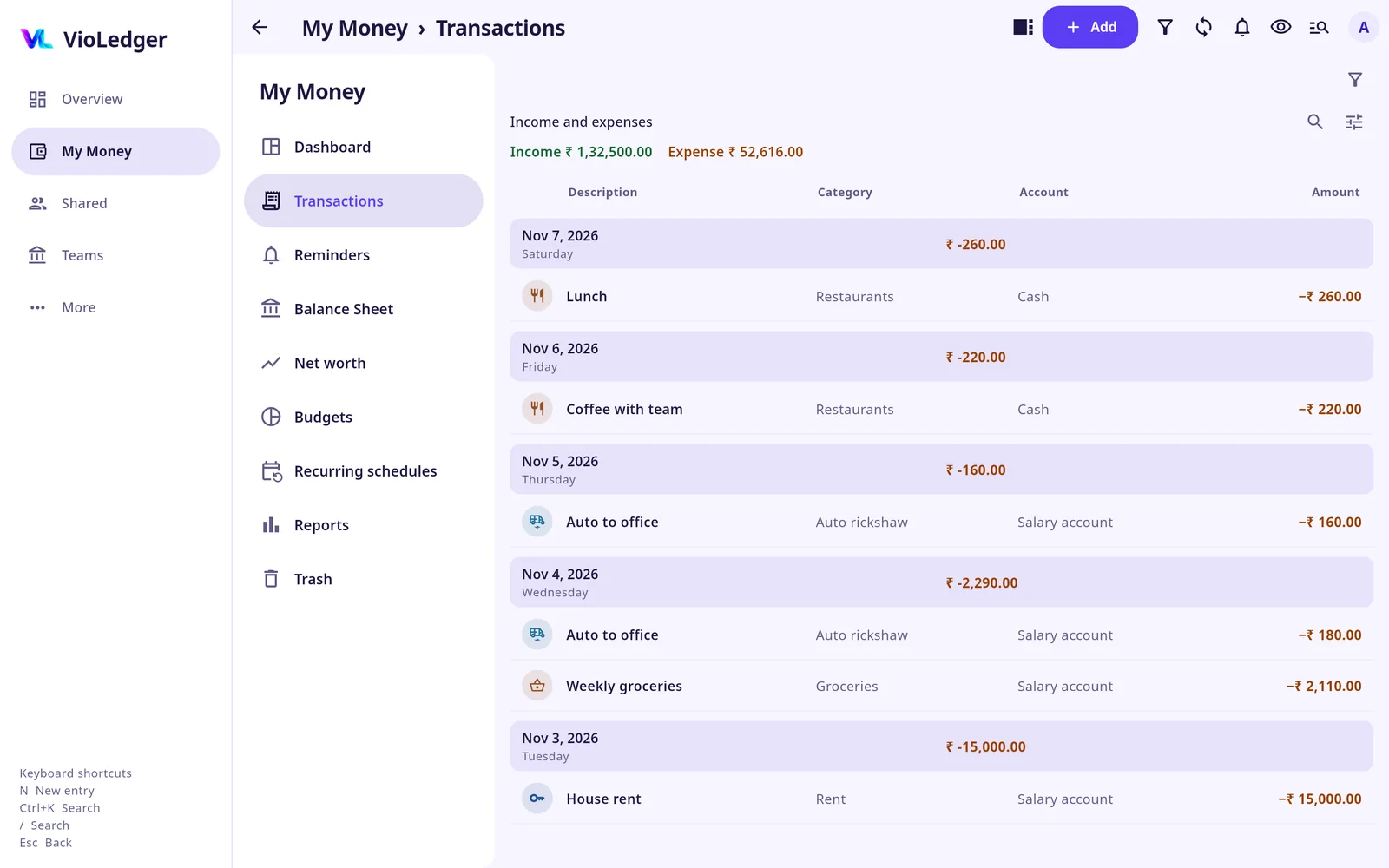
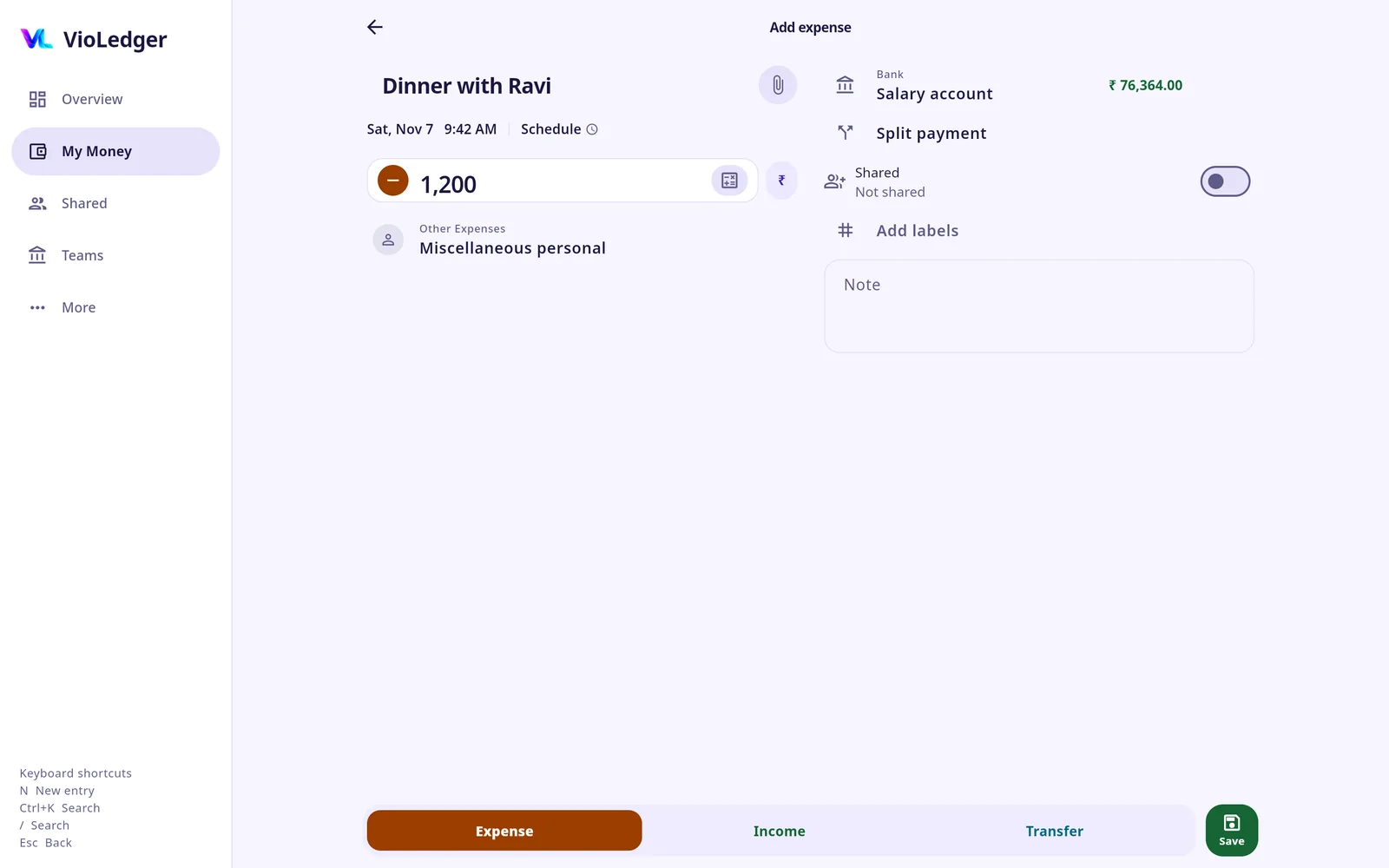
A menu on the left, tables you can sort, two-column pages, details in a side panel, and pop-ups that open in the middle of the page.
Press N to add an entry, / or Ctrl+K to search everything, and Esc to go back. A short list of keys is at the bottom of the menu.
On a phone the web app looks and works like the Android app, with the bottom bar and the same screens.
The web app does not send phone notifications or reminders, has no app lock, and cannot buy a plan: a plan bought in the Android app works on the web too. It needs an internet connection. If you use a shared computer, turn on Shared or public computer on the sign-in page and your data is cleared from that browser.
Add entries anywhere, with no signal. They are saved on your phone first and sent when you are connected. Sign in on a new phone and your accounts, people and settings are there. When something cannot be sent, VioLedger says why in plain words and in your language, such as "No internet connection. Entries you save stay on this phone and are sent when you are back online."
You never lose what you typed because the network dropped. While offline, VioLedger shows your saved balances, and an entry that was saved offline is never rejected later because of a plan limit.
Use VioLedger in English, Malayalam or Hindi (English, മലയാളം, हिन्दी).
The notification bell brings activity into one inbox, without sending you a notice for your own everyday entry.
My Money entries stay private and do not create transaction activity notices. Shared and Team notices go to the relevant people when another person adds, edits or deletes an entry. If someone changes your entry, you can be told.
Mark all notifications as read or clear read notices. Read and cleared notifications expire after 90 days by default; choose 1 to 364 days in More. Unread notices are preserved until you deal with them.
VioLedger asks once, after you first sign in, whether to allow alerts on your phone; you can change your mind in More. The in-app notices have their own switches and work whatever you answer. Email activity alerts are on by default and can be switched off in More. Shared debt reminders still need your approval before opening WhatsApp or email. The optional Add an entry notification shortcut is off by default.
On the 1st you get a short summary of last month: what you spent and earned in My Money, how it compares with the month before, and what you are owed and what you owe in Shared. It shows in the app for everyone. The email is off until you switch it on in More → Notifications → Monthly summary.
Your personal records are visible only to you. Shared records are visible only to the people in them. We do not sell your data.
Turn on the app lock and choose when it locks again. Hide balances on screen with one tap, and block screenshots and the recent-apps preview. These are free on every plan.
Export your data, or delete your account inside the app whenever you like. See how to delete your account and the privacy policy.
Ads are optional. VioLedger shows none unless you switch them on yourself, and when ads arrive they will be calm, non-personalised, and never on an entry form.